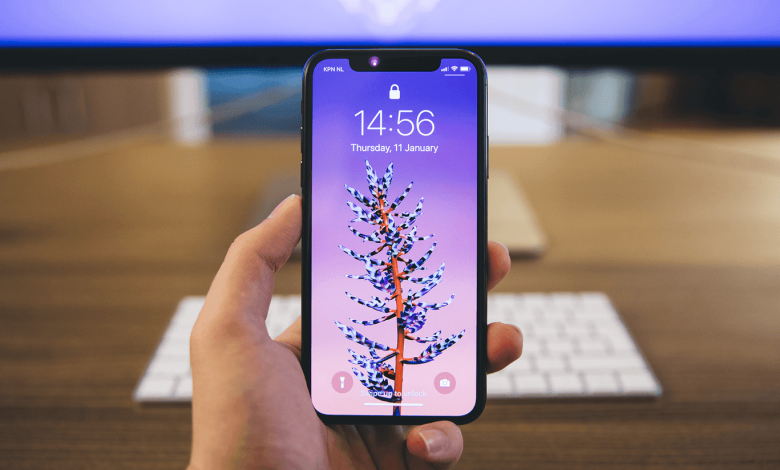
The best way to frustrate your iPhone thieves is by disabling iPhone control centre access. An easy way to disable iPhone lock screen accessibility. If you want to ensure your iPhone is not accessible when stolen or misplaced, then Aistackhub is here to give you a heads up on how to frustrate the holder of your iPhone if misplaced or stolen.
What happens if you turn off the Control Centre on your iPhone?
Have you been wondering why you should turn off or disable your iPhone’s Control Centre accessibility? The Control Centre inarguably ranks among the most-used features on the iPhone and iPad. It’s filled with useful controls that make managing lots of aspects within iOS and iPadOS a breeze! So useful in fact that Apple decided to make it accessible via the lock screen by default.
But having the Control Centre functional on the lock screen isn’t that good an idea. Let’s figure out why, and then check out how you should go about disabling access to the Control Centre from the lock screen of your iPhone or iPad. Turning off Control Centre access via the lock screen prevents others from meddling with your iPhone or iPad and also makes any would-be thief think twice.
Control Centre access via the lock screen is super useful. Who doesn’t like to use, say, the Do Not Disturb or the Stopwatch controls without having to unlock the screen first? But that convenience also brings many issues.
For starters, you always run into the risk of bringing up the Control Centre unintentionally and triggering an unwanted action—having your music blast out loudly in public can be a tad embarrassing.
But if that isn’t a concern, then this surely will be. The Control Centre also hosts the most important controls that keep the Find My iPhone/iPad feature functional—cellular data and Bluetooth.
Turn off iPhone Control Centre Access
Imagine if a thief stole your iPhone. To throw Find My off the rails, all that person has to do is switch off cellular data to disable location tracking. Unrestricted Control Centre access makes that a real concern. Even if you have changes to cellular data restricted, all the thief needs to do is activate airplane mode instead.

Hence, turning off access to the Control Centre from the lock screen can help prevent that. Yes, that likely won’t stop the thief from physically removing the SIM card from your device. However, iOS 13 and iPadOS also feature offline-finding technology that uses Bluetooth beacons to track devices. That means you can still track your phone even without cellular data.
So obviously, lacking access to the Control Centre will act as a deterrent against thieves since it’s quite hard to disable Bluetooth otherwise. And although the thief can turn off your device, Bluetooth will still kick in automatically whenever they switch it back on. That said, disabling Control Centre access on the lock screen is not a perfect security measure and won’t do you any good if a thief’s sole intention is to sell your iPhone or iPad for spare parts.
Lastly, having the Control Centre disabled on the lock screen will hardly matter on iPhones or iPads that use Face ID. The lock screen is usually unlocked by the time you bring up your device, so you will still have seamless access to the control centre without having to visit the home screen.
What happens if the iPhone Control Centre is not turned off?
If the Control Centre access is not disabled, once the iPhone device is stolen or misplaced, they can easily activate airplane mode, and it lets them have all the time to quickly look for a place to format and sell off the phone right on time.
However, if the Control Centre access is disabled, the user will not be able to perform any evil deeds or even think of selling it off because it is not flashed or accessible. To one who wants to purchase a device, he or she hasn’t accessed the ins and outs of the device. So if you want to turn off or disable the iPhone Control Centre on the Lock Screen, here is a quick guide on how to do that.
How to Disable iPhone Control Centre Access through Lock Screen
The methods below will teach you how to disable the Control Centre on the iPhone or iPad’s lock screen with only a quick trip to the Settings panel.
Disabling the Control Centre in iOS 11 and Higher
Step 1: Go to your Settings app on your iPhone or iPad and then tap either Touch ID & Passcode or Face ID & Passcode. You must then enter your Lock Screen passcode to proceed.


Step 2: Scroll down to where you see the ‘Allow Access When Locked section and then turn off the switch next to Control Centre.

That’s it… Once disabled, you are safe and sure to track your missing or stolen iPhone.
That should do the trick. Your iPhone or iPad won’t allow Control Centre access once the screen is locked. You can still access it after unlocking your device. On Face ID-enabled devices, it shouldn’t matter because you can quickly access the Control Centre by simply gazing at your iPhone or iPad to unlock it.
SECURITY BEEFED UP
As was already said, disabling Control Centre access from the lock screen keeps outsiders from interfering with your iPhone or iPad and deters potential thieves. Yes, entering the Control Centre manually may grow tedious, especially if you use Touch ID or a passcode to unlock your smartphone.
But if you carry your iPhone or iPad everywhere, the additional boost to security is well worth the inconvenience. Just don’t think of it as a surefire way to prevent your device from getting stolen.
Share this information using the social media sharing icons below. If you run into any difficulties setting this up, please leave a comment below. Sharing is caring, and we value your feedback.
If you have similar suggestions or questions, let’s hear them in the comment box below. Also, sharing is loving; share this article via the share buttons below. Subscribe to out channel today to get updates from our blog like this.
Source: www.guidingtech.com